Building an autonomous AI agent completely locally on a Raspberry Pi sounds like a pipe dream, but with the right optimizations, it’s entirely possible.
I’ve been experimenting with thePopeBot (an agent framework by Stephen G. Pope) on a Raspberry Pi 4B (8GB RAM). To make this work, we can’t just run a standard chatbot; we need an AI capable of reasoning, formatting JSON, and executing multi-step tasks without melting the Pi.
Here is exactly how I squeezed every drop of performance out of the Pi 4’s Cortex-A72 architecture to run the Qwen3.5 2B model (non-reasoning) as the “brain” for my local agent.
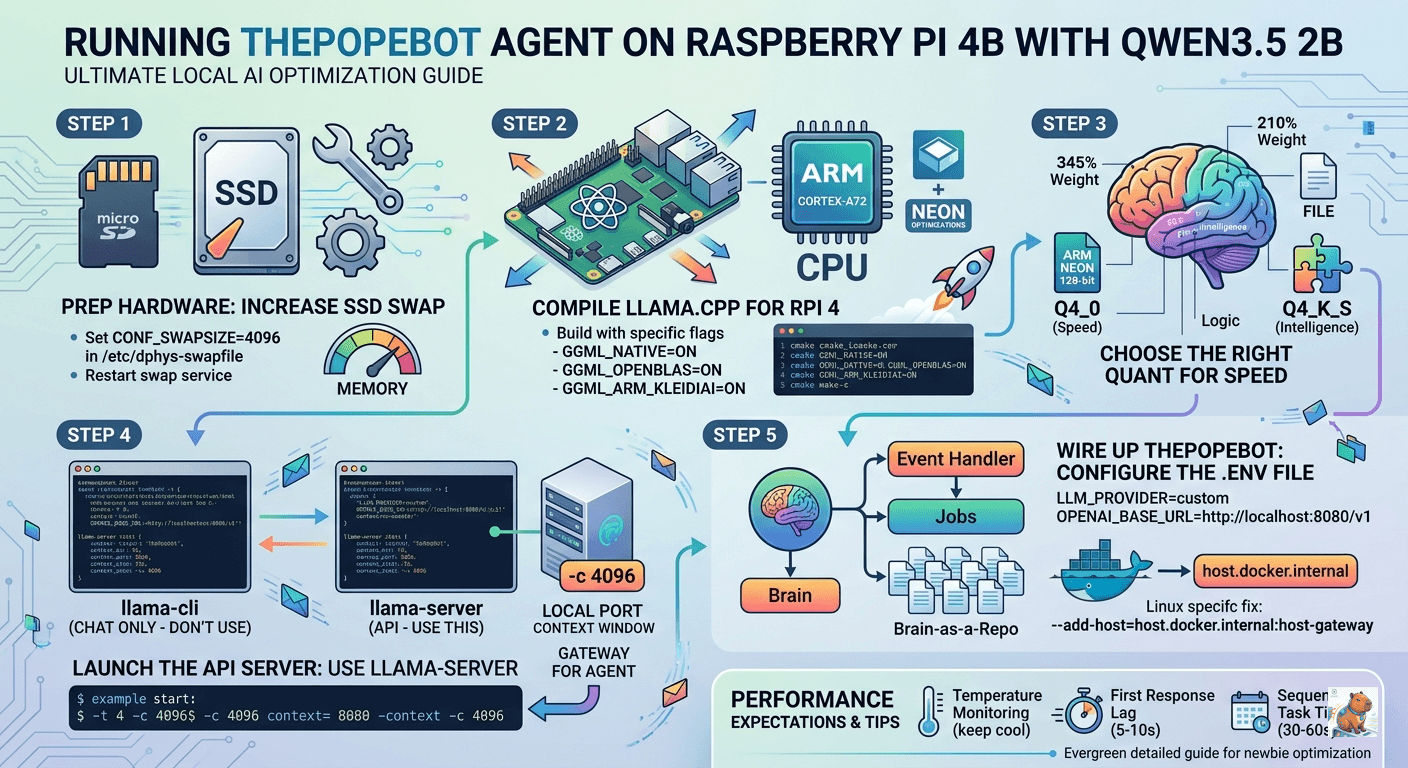
Step 1: Prep the Hardware (The SSD Swap Trick)
Before touching any code, we need to talk about memory. Even with 8GB of RAM, running an LLM and an agent framework simultaneously will strain the system. When the OS needs to make room for the model’s “KV Cache” (its short-term memory), it needs a fast place to offload background tasks.
If you are booting from an SSD, you must increase your swap file:
- Open your swap configuration:
sudo nano /etc/dphys-swapfile - Change the size to 4GB:
CONF_SWAPSIZE=4096 - Restart the service:
sudo systemctl restart dphys-swapfile
Refer Expanding Your “Virtual” RAM.
Step 2: Compiling the Engine for Cortex-A72
While pre-built versions of llama.cpp work, they leave a lot of performance on the table. We are going to compile it from scratch to enable specific ARM NEON optimizations and KleidiAI—Arm’s highly specialized micro-kernel library that speeds up the heavy math (GEMM) inside LLMs.
Run these commands in order:
# Install dependencies
sudo apt update && sudo apt install -y git cmake build-essential libopenblas-dev

# Clone the repository
git clone https://github.com/ggerganov/llama.cpp
cd llama.cpp

# Configure the build for Raspberry Pi 4 (Cortex-A72 / ARMv8)
cmake -B build \
  -DCMAKE_BUILD_TYPE=Release \
  -DGGML_CPU=ON \
  -DGGML_NATIVE=ON \
  -DGGML_OPENBLAS=ON \
  -DGGML_ARM_KLEIDIAI=ON

# Compile using all 4 cores
cmake --build build --config Release -j4
Why these flags matter:
-DGGML_NATIVE=ONforces the compiler to use every instruction your specific CPU has available.-DGGML_OPENBLAS=ONswaps out the default math backend for a highly optimized linear algebra library.
Step 3: Choosing the Right “Quant”
The Raspberry Pi 4 is heavily bottlenecked by its memory bandwidth. To fix this, we use quantization (compressing the model). For the Qwen 3.5 series, I recommend the 2B parameter non-reasoning model. It’s the “Goldilocks” zone: 0.8B is too small and will fail the complex JSON formatting required for agentic thought, while 4B starts to drag. Refer The Mathematics of Quantization.
Download the 2B-Q4_K_S Model
Run this in your llama.cpp directory:
curl -L https://huggingface.co/unsloth/Qwen3.5-2B-GGUF/resolve/main/Qwen3.5-2B-Q4_K_S.gguf -o models/Qwen3.5-2B-Q4_K_S.ggufRun with “No-Thinking” Flags
Qwen 3.5 is trained with a high “reasoning pressure.” On low-power hardware like the Pi 4’s Cortex-A72, the math required for the internal hidden states during “thinking” is too heavy. The model gets lost in its own neural feedback loops because it can’t complete the high-dimensional calculations fast enough to reach a “conclusion” token.
To prevent that “looping/thinking” behavior you saw with the 4B model, use the --reasoning-budget 0 flag. This forces the model to skip its internal monologue and just answer you directly.
./build/bin/llama-cli -m models/Qwen3.5-2B-Q4_K_S.gguf \
  -t 4 \
  -c 4096 \
  -b 256 \
  --temp 0.1 \
  --reasoning-budget 0 \
  -sys "You are a Stoic logic engine. Be concise." \
  -cnv --color auto
While it’s running, keep an eye on the eval time in the terminal logs (usually shown after you exit or at the bottom of the screen).
- On a Pi 4B, you should see roughly 5-8 tokens per second with the 2B model.
- If it feels sluggish, you can try reducing the context size (
-c 2048) to save on processing overhead.
Step 4: Launching the API Server (The Crucial Pivot)
Here is a mistake I initially made: I tried using llama-cli. You cannot use llama-cli for an autonomous agent. llama-cli is for human-to-AI terminal chat. thePopeBot needs an API server that mimics OpenAI so it can programmatically send prompts and receive responses. We must use llama-server.
Run this command to create your local endpoint:
./build/bin/llama-server \
  -m models/Qwen3.5-2B-Q4_K_S.gguf \
  --port 8080 \
  -t 4 \
  -c 4096 \
  -b 256 \
  --reasoning-budget 0 \
  --api-key "local-pi-key" \
  --host 0.0.0.0
-t 4: The Pi 4 has exactly 4 physical cores. Using more threads will cause cache thrashing and actually slow down generation.-c 4096: The context window. Agents need much more context than chat interfaces because they carry a massive “System Prompt” alongside task history.
How to test your new API
Open a new terminal window on your Pi (or your laptop on the same network) and run:
curl http://localhost:8080/v1/chat/completions \
  -H "Content-Type: application/json" \
  -H "Authorization: Bearer local-pi-key" \
  -d '{
    "model": "qwen3.5-2b",
    "messages": [
      {"role": "system", "content": "You are a Stoic logic engine."},
      {"role": "user", "content": "Halo"}
    ],
    "temperature": 0.1
  }'
Step 5: Wiring Up thePopeBot
thePopeBot is a repository-aware agent with an Event Handler (for real-time chats) and Jobs (for scheduled tasks running in Docker).
Head to your .env file in thePopeBot directory and configure it to talk to your local Pi server:
LLM_PROVIDER=custom
LLM_MODEL=qwen3.5-2b
OPENAI_BASE_URL=http://localhost:8080/v1
OPENAI_API_KEY=local-pi-key
The Optional Step: Making it Permanent (systemd)
Right now, if you close your terminal or the power blinks, the AI dies. To make it a “real” startup, we need to turn it into a background service.
1. Create the service file:
sudo nano /etc/systemd/system/llama-server.service2. Paste this configuration: (Make sure to replace /.../llama.cpp with your actual path if it’s different).
[Unit]
Description=Llama.cpp API Server (Qwen 3.5 2B)
After=network.target

[Service]
Type=simple
User=kafechew
WorkingDirectory=/home/kafechew/llama.cpp
ExecStart=/home/kafechew/llama.cpp/build/bin/llama-server \
  -m /home/kafechew/llama.cpp/models/Qwen3.5-2B-Q4_K_S.gguf \
  --port 8080 \
  -t 4 \
  -c 4096 \
  -b 256 \
  --reasoning-budget 0 \
  --api-key "local-pi-key" \
  --host 0.0.0.0
Restart=always
RestartSec=5

[Install]
WantedBy=multi-user.target
3. Enable and Start the service:
sudo systemctl daemon-reload
sudo systemctl enable llama-server
sudo systemctl start llama-server
How to manage your AI Brain from now on:
- Check if it’s alive:
sudo systemctl status llama-server - See the live “thoughts” (logs):
journalctl -u llama-server -f - Stop it:
sudo systemctl stop llama-server
The Docker Network “Gotcha”
If thePopeBot triggers a Job inside a Docker container, that container cannot simply reach localhost:8080 (because “localhost” inside Docker means the container itself, not the Pi).
Change the URL for Docker jobs to:
OPENAI_BASE_URL=http://host.docker.internal:8080/v1Linux Fix: Because the Pi runs Linux, host.docker.internal doesn’t work by default. You must add --add-host=host.docker.internal:host-gateway to your docker run command when launching thePopeBot’s jobs!
Performance Expectations
Because thePopeBot uses a “Brain-as-a-Repo” architecture (where actions are committed to git), be prepared for the realities of running this on a Pi:
| Metric | Reality on a Pi 4 |
|---|---|
| First Response Lag | 5–10 seconds (Digesting the massive system prompt). |
| Sequential Tasks | 30–60 seconds. A single agentic loop (“Think” → “Write” → “Review”) takes time. Patience is key. |
| Memory Headroom | Excellent. 8GB is plenty for the 2B model, leaving enough room for Docker containers. |
For more, the previous research report investigates the optimal configuration of models, inference engines, and system-level parameters required to transform a quad-core ARMv8 platform into a reliable, 24/7 autonomous AI Agent.